Category Archives: Shell Scripting

Linux Screen – Window Management At It’s Best

screen-linux Just in case you haven’t heard about Screen or don’t know what Screen is about, in short – Screen is the de-facto window manager in a *nix environment. Not only does it let you open and switch between multiple windows, Screen also let’s you run programs in it’s won environment, even if you close the current SSH session. This comes in handy when you have scripts that run for a long time and could potentially timeout in SSH. Another handy feature is to establish your window sessions, perhaps modifying several files in Vim, then log out for lunch and come back to find your windows just like when you left.

Let’s get started using Screen

Connect to a remote computer using a terminal via SSH. If you haven’t installed Screen already, you can do so using your distro’s package manager (in Ubuntu: sudo apt-get install screen). Once installed, start it:

$ screen Read more »

Install Oracle Java JRE on Ubuntu 12.04

Dealing with different versions of Java Virtual Machine or Java Runtime Environment (JRE/JVM) has always been a bit of a pain, especially on Linux, where we have not only different versions, but also different vendors. To make matters worse, some application require the original Sun/Oracle version, while others are perfectly fine with open source version.

In the past, Sun provided an installer for deb and rpm based distributions, but since Ubuntu 12.04, there is no luck. However, installing Oracle’s JVM manually is actually straight forward and not complicated at all, if one know the steps involved. That’s what this article is all about.

Note: We are running the 64bit version of Ubuntu, if you’re running 32bit, make sure you adjust for the correct file versions and paths.

Remove existing Runtime Environments

Let’s first ensure that openjdk is removed if it was previously installed.

sudo apt-get purge openjdk*

Read more »

Install ffmpeg on Mac Snow Leopard

WebmFfmpeg is the de-facto open source standard for encoding audio and video. Especially with the arrival of html5 which uses codecs like Ogg, Theora, Vorbis, h264, webm among others, and the increasing popularity of devices from Apple, such as iPod, iPad and the iPhone, all of which require a different standard from flv, the version so widely in use by Adobe Flash.

Another positive aspect is that ffmpeg has a much revived developer group, posed to enhance the application on a much faster pace than it has been in recent years.

Installation on Linux systems is really straight forward, especially on common distro’s like Ubunty and Fedora. On a Mac, we will have to build it from source (if you’re not a fan of ports like me), including encoder/decoders we plan to use. Here is the breakdown to get ffmpeg installed on a Mac running Snow Leopard.

Install Git

If you don’t have Git installed, download the Git installer here, install the package and run the script in the source of the mounted image. CVS is included in XCode and that is located on the snow leopard installation disc.

Install LAME (latest version from cvs)

cd ~
cvs -d:pserver:anonymous@lame.cvs.sourceforge.net:/cvsroot/lame login
(at the password prompt, press Enter)
cvs -z3 -d:pserver:anonymous@lame.cvs.sourceforge.net:/cvsroot/lame co -P lame
cd lame
./configure
make
sudo make install

Read more »

Access Dropbox From Linux Server Command Line

DropboxSharing files between VM’s can be a pain, especially if your VM is running on a text based server without UI. For example, I start up a new VM for almost anything and I deal with up to 20 different sites and application and every one has it’s own VM.

VMWare provides it’s “Guest Additions” and that includes folder sharing. It works fine on desktop os’s, but on the command line we have to mount it using VMWare’s file system, which can be a bit cumbersome. A much simpler and easier way to share files is via USB or DropBox. Getting the DropBox sync daemon to run is really easy and once running, anything you add to DropBox will be synced to your VM transparently and at network speed.

If you don’t already have a DropBox account setup, get a free one here. Now on to the steps to get the sync daemon up and running.

Steps:

SSH to your Linux server and change to your home directory.
cd ~
for 32-bit os:
wget -O dropbox.tar.gz “http://www.dropbox.com/download/?plat=lnx.x86″
for 64-bit os:
wget -O dropbox.tar.gz “http://www.dropbox.com/download/?plat=lnx.x86_64″
After the file “dropbox.tar.gz” downloaded properly, then extract it
tar -xvzf dropbox.tar.gz Read more »

Fix for Mac OS 10.6.5 apachectl: line 82: ulimit

Mac OS 10.6.5 + apachectl: /usr/sbin/apachectl: line 82: ulimit: open files: cannot modify limit: Invalid argument

After the upgrade to Mac OS 10.6.5 a bug seem to have snuck in where apachectl tries to re-set ulimit to unlimited. The error appears as such:

/usr/sbin/apachectl: line 82: ulimit: open files: cannot modify limit: Invalid argument

While apachectl was working flawless before the upgrade to Mac OS 10.6.5, I suspected the two were related. After a quick search into what the update entailed, I found that Apple upgraded to Apache 2.2.15, which in turn patched a number of vulnerabilities. As it turned out, one of those changes broke the apachectl script.

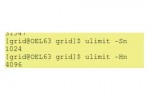
Referring to line 82 of apachectl, the shell script was referring to the ULIMIT_MAX_FILES variable that was trying to set to unlimited, which read:

ULIMIT_MAX_FILES="ulimit -S -n `ulimit -H -n`"

Changing the line as follows fixed the problem:

ULIMIT_MAX_FILES="ulimit -S -n 1024"

Should you be running a high amount of vhosts or do some testing that requires a significant amount of file descriptors, set this number higher accordingly.

Setup Puppet to configure your network servers

Growing companies at some point are faced with the increased workload to setup, configure and maintain their servers and applications. Administrators try to script repetitive tasks and ultimately look for solutions that are scalable and provide a central management tool base. There are several software packages available, commercial and open source ones.

Puppet is probably the most used open source configuration management package available today and more system administrators and software developers are interested in setting it up within their environment. An excellent book about Puppet (Pulling Strings with Puppet) is available and so are numerous online articles and tutorials. However, lots of online resources are just not quite complete and can lead to lots of frustration, especially in the setup and configuration of Puppet.

So here is another step by step tutorial about how to install and setup Puppet to the point where we can run a simple recipe residing on the server (puppetmaster) and execute on the client. For this illustration we’ll install Puppet on Ubuntu 10.10 using a deb package.

Configure Network and DNS

Setting up configure hostnames on server and client is crucial. Since Puppet uses self signed certificates to secure communication, it’s essential that network is setup properly and hostnames are configured with fully qualified domain names.

Let’s open /etc/hosts and add the necessary entries. (note: If you use a DNS server in your network, those setting changes should be made on your DNS server and not the hosts file)

 Read more »

Install and configure puppet server (puppetmaster) on Ubuntu 10.10

Before installing and configuring puppet server (puppetmaster), ensure that your network is properly setup. Configure Puppet Server on Ubuntu 10.10 is easy and straight forward. It’s those subleties about the network configuration and necessary puppet recipes and files that can make our lives miserable.

To install Puppet, choose one of the following methods (we will use the Ubuntu Package)

Using package manager of your distro

  • RPM (Fedora) for Red Hat, Fedora (puppet-server for server, puppet for client)
  • DEB (Debian) for Ubuntu, Debian (puppetmaster for server, puppet for client)

Installing from source: (note: you will need to have Ruby installed on your system prior to installing Puppet)

  • download the latest version from puppetlabs
  • # tar -zxf puppet-0.xx.x.tgz
  • # cd puppet-0.xx.x
  • # ruby install.rb
  • # puppet –version (to verify installation)

Using Ruby Gem: (note: you will need to have Ruby and Ruby Gem installed on your system prior to installing Puppet)

# gem install –remote –source http://reductivelabs.com/downloads puppet

Read more »

Create Patch Files Using Patch And Diff

Using diff to create batch files and subsequently running them against select files is such a convenient way to update, fix or change existing files, but many developers and system administrators simply don’t know much about them.

Here is a quick primer on using diff and apply changes for select files. Use diff –help to check out more options and flags.

NOTE: pay caution when using patching, any mistake or error are executed without warning or undo feature. It’s best to always make a backup of any file or folder that are going to be affected by your patch.

diff

Some useful flags you can specify when comparing files are -b (ignore white space difference), -B (ignore blanc lines), -r (recursive) and -i (ignore case).

Let’s say we need to change the GA analytics code on our pages and that they are unfortunately hard coded. The files are shown below as are the results from diff: Read more »

Track And Parse Twitter Messages Stream

Ever wanted to listen, track and parse tweets from a Twitter stream from an individual user? It’s quite an easy task, if you know the right URL’s to parse. Curl is a great little tool to get sources from almost any web resource and Curl has roots in Linux command like and PHP, just to name a couple.

Let’s look at how this would work by pulling CNN’s breaking news feed as JSON:

curl http://twitter.com/status/user_timeline/cnnbrk.json

or XML:

curl http://twitter.com/status/user_timeline/cnnbrk.xml

That will give you the last 20 tweets in either JSON or XML format.

An even more interesting option is to get messages where you have been mentioned. It’s a bit more complicated, as we need to supply login credentials, but no rocket science either:

curl -u “username:password” http://www.twitter.com/statuses/mentions.json (or .xml if you prefer)

That’ll give you the last few tweets mentioning the user supplied with the curl command. Now all you got to figure out is how to parse the messages and plug them into your application.

Ubuntu run script at startup, shutdown or reboot

What’s the proper method to run a script at startup on Ubuntu?
You can use update-rc.d for start-only or stop-only scripts, following these steps:

Start script called “startup_script” on startup (note the dot at the end of the line) :

# update-rc.d -f startup_script start 99 2 3 4 5 .

- start is the argument given to the command (start, stop).
- 99 is the start priority of the script (1 = first one, 99= last one)
- 2 3 4 5 are the runlevels at which to run the script

The dot at the end of the line has significance, read more here: /etc/rcS.d/README

Start startup_script on shutdown and reboot :
# update-rc.d -f startup_script start 90 0 6 .

Stop startup_script on halt and reboot :
# update-rc.d -f startup_script reboot 90 0 6 .

To run the script as a daemon, use the skeleton file located at “/etc/init.d/skeleton”

To know which runlevel you are running, type:
$ runlevel

Read more about runlevels here.